
HBlink3 Docker Installer
Debian 10 / 11 / 12 / 13 (Trixie) Support!!
This is a multi-arch docker installer for HBlink3 and HBmonV2 combined for Debian 10, 11, 12, and 13 (Trixie).
Note: Debian 12 (Bookworm) and 13 (Trixie) support has been added with proper handling of pip installation restrictions and docker-compose compatibility.

Additional Features
NEW! Parrot built in
Parrot is built into this install (Default disabled, see below how to enable the parrot feature!
Destructive Installer
This is a destructive installer and is recommended to be built on a freshly installed machine running Debian 10, 11, 12, or 13 (Trixie).
Docker Multi-Arch build
Docker container pre-built for multi-arch!
- x86_64
- armv6 / armv7
- aarch64
- ppc64
- lots more!
This installer builds the entire HBlink server! It includes all of the dependencies needed to run HBlink3 within docker via docker-compose. The install also includes HBMonv2, which is a dashboard designed for HBlink3 by SP2ONG! This runs side by side, but at this time runs on the host machine using Systemd. HBMonv2 is controlled by a system unit file which runs the python code on the host.
This installer includes all the usual libs and packages including docker, apache2, php and python3. It is recommended that you install this on a 'clean machine'. The script is destructive and is not designed to be used on an exisiting machine that has other software on it! YOU HAVE BEEN WARNED!
Prerequisite
The host system must be running Debian 10, 11, 12, or 13 (Trixie). The installer has been tested on these Debian versions and works on most architectures. The system requires, at a minimum; 1 core, 512mb of ram, the required spec to run docker and additional processes! The system must be up-to-date and have Git installed. You can install Git from the CLI.
Note* If you get Locale error(s) (LC_CTYPE=UTF-8, which is wrong) can happen when you login over ssh from a Mac to a linux box, and your terminal automatically sets environment variables. There's a checkbox for that. Uncheck it, and you're good to go.
Make sure your system is up-to-date and pull Git from the apt repo.
apt-get install -y git
Installation
- Preferably a clean Debian 10, 11, 12, or 13 (Trixie) system. Make sure your system is up to date with the latest apt repository database. You must be super user "root" to run this installer successfully.
apt update
sudo su
- Clone this repository to any directory of your choice. The installer will work from any location!
git clone https://github.com/ShaYmez/hblink3-docker-install
Note: While you can clone to any directory, /opt is still recommended for consistency.
- Now enter into the cloned repo and execute the install script. No need to chmod as permissions are already satisfied.
cd hblink3-docker-install
./hblink3-docker-install.sh
- Follow the install and any prompts! It will prompt you for kernel updates if necessary.
- Once the installation is complete you will be presented with the first time run menu. Edit your config or exit to complete setup.
New Menu System released with this installer!
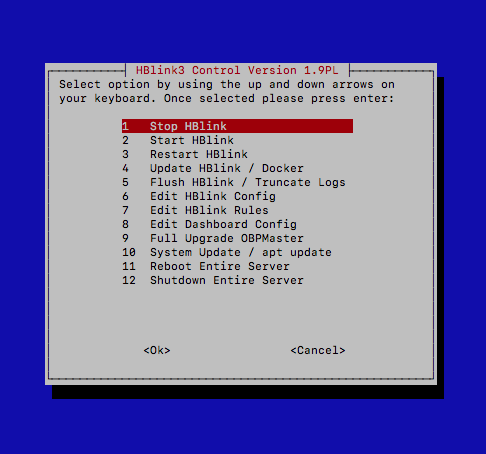
-
Once the installation is complete you will be guided to the Setup Menu. To interact with this menu follow the on-screen instructions! Set up and configure your system with the new menu system! Once finished hit 'Finish Setup & Exit' to exit out of the setup menu.
-
To enter the HBlink control menu, type the command
hblink-menu
- To interact with the routine scripts manually you can enter the comands directly without the use of the menu
hblink-start
hblink-stop
hblink-restart
hblink-flush
hblink-update
hblink-uninstall
Uninstallation
To completely remove HBlink3 and all its components from your system, you can use the uninstall script:
hblink-uninstall
or
hblink-menu
Then select option 11 "Uninstall HBlink3"
The uninstall script will:
- Stop all HBlink3 services (Docker containers and HBMonv2)
- Remove Docker containers and HBlink images
- Remove systemd service files
- Remove cron jobs
- Remove control scripts from /usr/local/sbin
- Backup configurations to /root/hblink3-backup-[timestamp]
- Remove installation directories (/etc/hblink3, /opt/HBMonv2, /var/log/hblink)
- Restore default Apache index page
Note: Docker, Apache2, PHP, and other system packages will NOT be removed during uninstallation.
- To interact with HBlink3 manually using docker you need to enter the HBlink3 directory
cd /etc/hblink3
- You can only interact with HBlink3 in this directory. Use the following commands to interact with the installation. We use docker-compose to run the docker container!
docker-compose up -d
docker-compose down
docker-compose restart
docker-compose pull
sudo nano docker-compose.yml
- Edit your configuration before deployment!
nano hblink.cfg
nano rules.py
- Check the logs for errors!
docker container logs hblink
or
/var/log/hblink/hblink.log
- Interact with HBMonv2 (Dashboard engine)
systemctl start|stop|restart|status hbmon

Within this installation includes the new HBMonv2 by Weldek SP2ONG
- Better dashboard for monitoring per page
- Python build
- Websocket connection to web interface
- Can be easily secured by SSL / Websocket secure
- Includes lastheard database with auto cron installed
- Includes talkgroup html editable page
Easy Installation And Upgrade
The installation can be upgraded either by the use of a future scripts or by manually backing up your configuration and re-running the install script. Also the ability and really cool feature of docker-compose is that its easy to update the container with fresh images! Run by a simple command. Make sure you are in the /etc/hblink3 dir.
docker-compose pull
or
hblink-update
Ports to forward
http 80/tcp
https 443/tcp
report 4321/tcp
websocket 9000/udp
MMDVM 62030-62031/udp
OBP 62032-62050/udp
ssh 22/tcp
Enable the Parrot
This installer comes with the parrot disabled. To enable the parrot follow commands below.. Asuming you are super user root!
nano /etc/hblink3/docker-compose.yml
Scroll down to the bottom of this compose file and look for - 'PARROT_ENABLE=0'
Edit this to enable the Parrot master server which will be excuted upun restart
- 'PARROT_ENABLE=1'
Ctrl X and save! Now lets enable the peer to connect to the master in our config...
nano /etc/hblink3/hblink.cfg
Scroll down to the [Parrot] stanza and edit ENABLED: True to enable.
Next we have put an example rule in rules.py. Remove the # hashes to enable routing of the parrot.
nano /etc/hblink3/rules.py
Ctrl X and hit save! Once done save this and enter the the HBlink control menu
hblink-menu
Select option 4 "Update HBlink / Docker Watch the terminal for any errors while bringing up the project! You can use the parrot on TG9999 (Default) or edit for your own tastes!
Postrequisite
Make sure you have properly configured your firewall!!! If using Vultr servers they come default with full firewall blockade! For initial testing disable the firewall!
ufw disable
More to come...
We will be updating this repository to include more documentation. In the mean time learn about docker @ https://docker.com and visit the HBlink3 official repo for further documentation! https://github.com/HBLink-org/